Sharp 2T-C42BG1X - Mode d'emploi
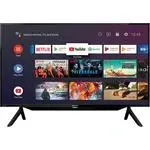
Télévision Sharp 2T-C42BG1X - Mode d'emploi, à lire gratuitement en ligne au format PDF. Nous espérons que cela vous aidera à résoudre toutes les questions que vous pourriez avoir. Si vous avez encore des questions, contactez-nous via le formulaire de contact.
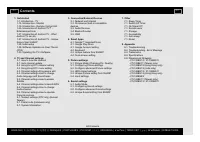
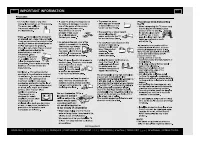
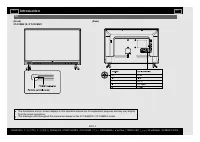
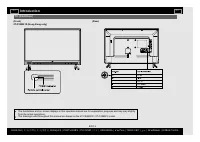
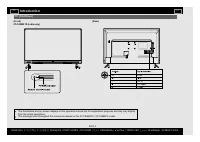
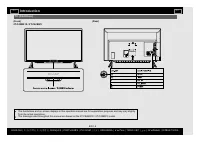
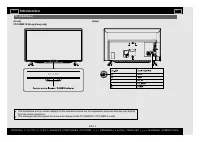
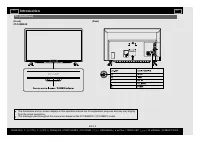
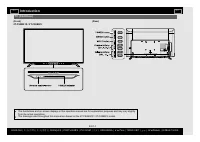

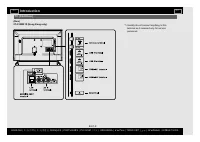
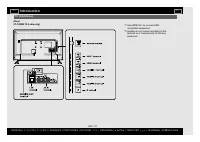

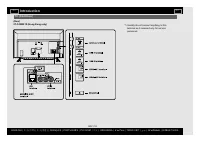
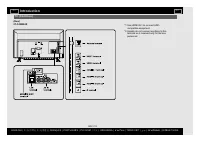
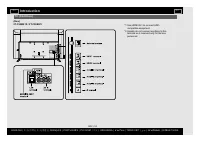
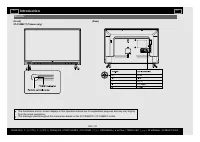
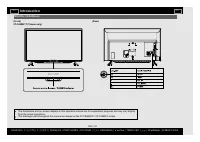
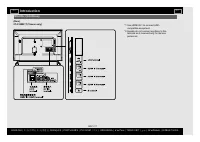
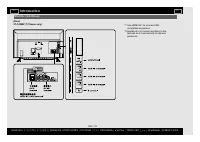
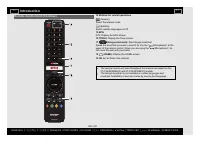
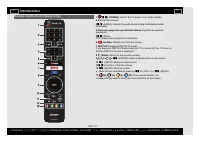
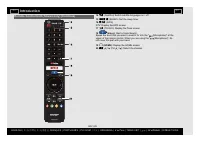
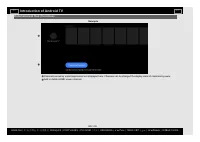
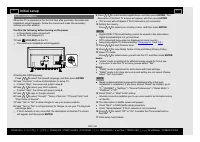
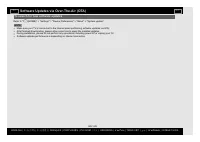
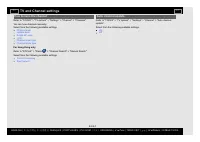
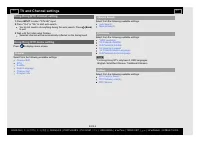
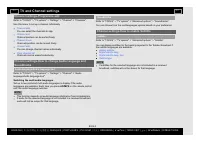
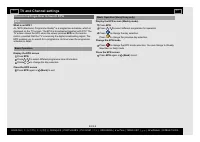
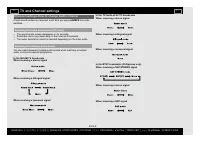
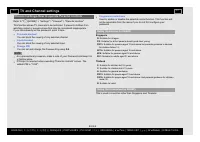
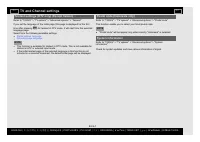
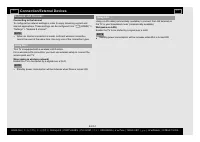
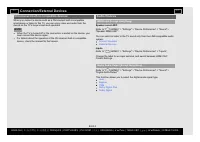
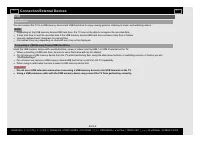
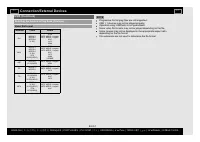
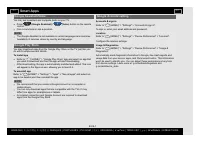
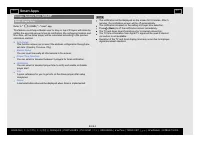
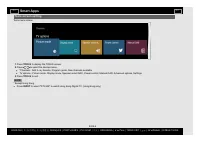
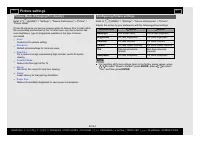
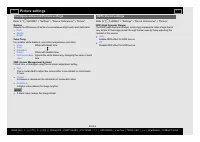
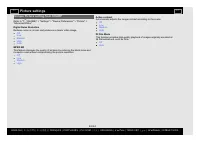
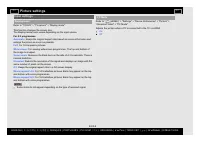
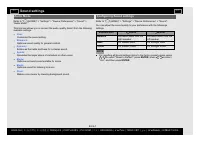
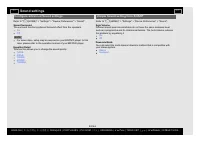
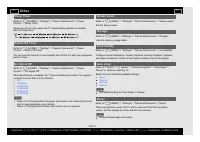
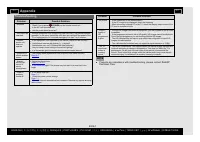
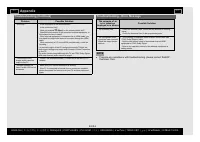
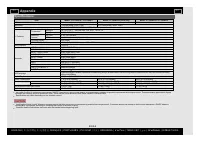
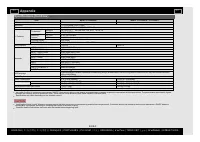
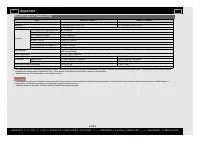
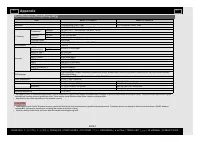
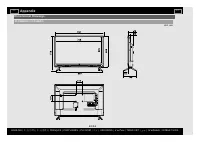
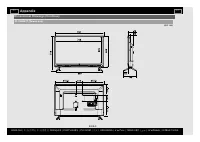
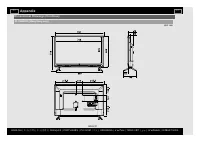
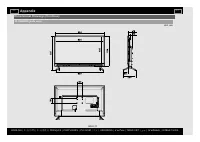
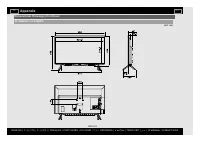
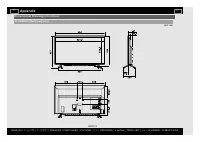
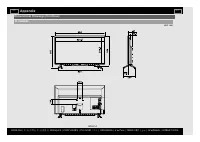
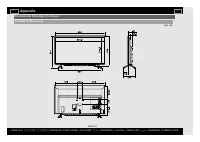
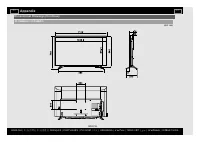

Table des matières:
- Page 2 – TV and Channel settings; Contents; EN Contents
- Page 3 – EN Important2
- Page 4 – EN Important3
- Page 5 – TV; Introduction; 中文
- Page 19 – Monitor
- Page 27 – Auto installation; xx; Initial setup
- Page 28 – To search for new software updates; NOTE
- Page 29 – How to tune the channel; For Hong Kong only; Auto channel update; Select from the following available settings.; TV and Channel settings
- Page 30 – Hong Kong DTV channel setting; INPUT; Hong Kong DTV menu setting; Channel
- Page 31 – Channel settings-Programme edit; Channel skip; Audio language/Audio language 2nd; Channel settings-How to enable Subtitle; Subtitle
- Page 32 – Channel settings-How to launch EPG; EPG
- Page 33 – Channel settings-How to change Audio channel; If multi sound modes are received, each time you press; Switching the digital audio format (DTV only)
- Page 34 – Channel settings-How to operate Parental controls; Channels blocked; You can block the viewing of any selected channel.; Inputs blocked; You can block the viewing of any selected input.; Change PIN; You can set and change the Password by using; This is used in countries other than Singapore and Thailand.
- Page 35 – ) for teletext in DTV mode, it will start from the selected; This function enable you to select your local postal code.; System information; Check for system updates and view various information of signal.
- Page 36 – Network and Internet; Connecting to the Internet; Enable the TV to be started by a signal over a Wi-Fi.; Standby power consumption will be increase when Wow is turned ON.; Using LAN; Enable the TV to be started by a signal over a LAN.; Standby power consumption will be increase when Wol is turned ON.; Connection/External Devices
- Page 37 – Chromecast built-in compatible devices; Audio Devices; Speaker select ARC; This function allows you to select the digital audio signal type.
- Page 38 – USB; Preparation
- Page 40 – Google Assistant/Voice; To install app; Google Account setting; Location; Smart Apps
- Page 41 – You can insert manually all informations in the screen.; to off the notification screen immediately.
- Page 42 – Tools screen setting; Tools menu screen; to display the TOOLS screen.; Press
- Page 43 – Configuring Picture settings; Picture settings
- Page 44 – Configure advanced Picture settings; Gamma; HDR related settings
- Page 45 – Unique Picture setting from SHARP; Digital Noise Reduction; Reduces noise on screen and produces a clearer video image.; MPEG NR; Automatically adjusts the image contrast according to the scene.; DI Film Mode
- Page 46 – Input settings; Display mode
- Page 47 – Sound settings
- Page 48 – Configure advanced Sound settings; Sound Surround; This function allows you to change the sound quality.; Unique Sound setting from SHARP; Auto Volume
- Page 49 – Your purchased apps will remain.; Other
- Page 50 – Troubleshooting; Appendix
- Page 51 – Troubleshooting - Error Message
- Page 52 – Trademarks
- Page 53 – Specifications
- Page 57 – Dimensional Drawings
LED BACKLIGHT TV / MONITOR
OPERATION MANUAL
Please choose your favourite page from the content.
If you want to close the operation manual, press the
(HOME)
button.
Also, if you want to return to the previously displayed page,
press the
(Back)
button.
ENGLISH |
) |
) | FRANÇAIS | PORTUGUÊS | РУССКИЙ |
| INDONESIA |
| TIẾNG VIỆT | ﻲﺑرﻋ | АҒЫЛШЫН | O'ZBEK TILIDA
« Chargement du manuel » signifie que vous devez attendre que le fichier soit complètement chargé avant de pouvoir le lire en ligne. Certains manuels sont très volumineux, et le temps de chargement dépend de la vitesse de votre connexion Internet.
Ce manuel vous a-t-il été utile ?
À propos de ce manuel
- Marque
- Sharp
- Modèle
- 2T-C42BG1X
- Type de document
- Mode d'emploi
- Catégorie
- Télévision
- Langue(s)
- Allemand, Anglais, Espagnol, Français, Italien, Dutch, Polonais, Russe, Swedish
- Pages
- 66
- Taille du fichier
- 5,5 MB
- Format
Résumé
1. Get started 1-1. Introduction - TV1-15. Introduction - Monitor1-19. Introduction - Remote Control Unit1-25. Introduction of Android TV™ -Entertainment Hub1-27. Introduction of Android TV - WhatAndroid TV can do1-27. Introduction of Android TV - Uniquefeature from SHARP1-28. Initial setup1-29. Sof...
IMPORTANT INFORMATION EN Important2 ENGLISH | 中文 ( 台灣 ) | 中文 ( 香港 ) | FRANÇAIS | PORTUGUÊS | РУССКИЙ | 中文 | INDONESIA | ภาษาไทย | TIẾNG VIỆT | ﻲﺑرﻋ | АҒЫЛШЫН | O'ZBEK TILIDA >> <<
IMPORTANT INFORMATION EN Important3 ENGLISH | 中文 ( 台灣 ) | 中文 ( 香港 ) | FRANÇAIS | PORTUGUÊS | РУССКИЙ | 中文 | INDONESIA | ภาษาไทย | TIẾNG VIỆT | ﻲﺑرﻋ | АҒЫЛШЫН | O'ZBEK TILIDA >> <<
Poser une question
Manuels associés
Plus de modèles téléviseurs Sharp


Autres appareils Sharp
 Mode d'emploi Sharp AR-5618
 Mode d'emploi Sharp AR5618
 Notice Sharp AY-XP12RMR
 Mode d'emploi Sharp Calculator EL-1197P
 Mode d'emploi Sharp CV-P10PR
 Notice Sharp EL-334F
 Mode d'emploi Sharp EL-337C
 Notice Sharp EL-501X
 Notice Sharp EL-520W
 Notice Sharp EL-1197P
 Notice Sharp EL-1607P
 Notice Sharp EL-1611P
 Mode d'emploi Sharp EL-1801C
 Mode d'emploi Sharp EL-2135
 Notice Sharp EL-2139H