Page 2 - Exclusion de garantie; Licences et marques; Introduction; Disclaimer
Introduction Merci d’avoir acheté cette imprimante numériqueCD-300 Canon.Veuillez lire attentivement ce Guide ainsi que leGuide de l’utilisateur du pilote d’imprimante afind’utiliser cet appareil de la meilleure façon possible. Veuillez respecter les droits d’auteur. Les imagesp r o d u i t e s p a ...
Page 4 - Features; Caractéristiques de l’imprimante
2 Features Photo-Quality Printing High-quality prints look like true silver-halide photo-graphs. Coated Prints. Print surface is covered by a protective coating. Borderless Prints Lets you print eye-catching images that fill the entiresheet. Panorama Prints Merges multiple images into a seamless pan...
Page 5 - Package Contents; Vérification du contenu de; IMPORTANT
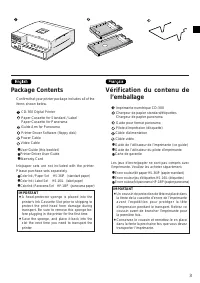
3 Package Contents Confirm that your printer package includes all of theitems shown below. CD-300 Digital Printer Paper Cassette for Standard / Label Paper Cassette for Panorama Guide Arm for Panorama Printer Driver Software (floppy disk) Power Cable Video Cable • User Guide (this booklet) • Printer...

Page 6 - Safety Precautions; WARNINGS; Précautions de sécurité; AVERTISSEMENTS
4 Safety Precautions • Before using the printer, please ensure that you have read and understood the safety precautionsdescribed below. Always ensure that the printeris operated correctly. • The safety precautions noted on the following pages are intended to instruct you in the safe andcorrect opera...
Page 9 - Controls and Components; Commandes et pièces
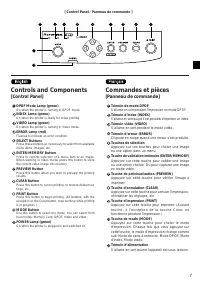
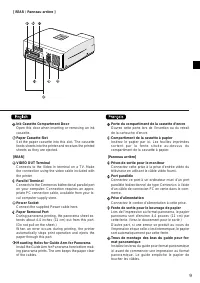
7 Controls and Components [Control Panel] DPOF Mode Lamp (green) On when the printer is running in DPOF mode. INDEX Lamp (green) On when the printer is ready for index printing. VIDEO Lamp (green) On when the printer is running in Video mode. ERROR Lamp (red) Flashes to indicate an error condition. ...
Page 12 - Connexion; numérique ou d’un appareil vidéo); À propos de l’emplacement d’installation de l’appareil; Making Connections; Installation Advice
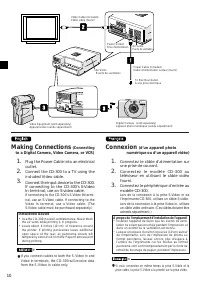
10 Power Cable (included)Câble d’alimentation sectaur (fourni) Connexion (d’un appareil photo numérique ou d’un appareil vidéo) 1. Connectez le câble d’alimentation surune prise de courant. 2. C o n n e c t e z l e m o d è l e C D - 3 0 0 a utéléviseur en utilisant le câble vidéofourni. 3. Connectez...
Page 13 - Loading Paper; NOTE; Mise en place du papier; NOTEZ
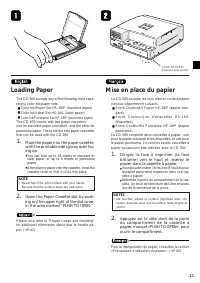
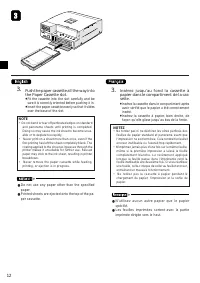
11 Loading Paper The CD-300 accepts any of the following (sold sepa-rately) color-ink/paper sets. • Color Ink/Paper Set HS-36IP (standard paper) • Color Ink/Label Set HS-16IL (label paper) • Color Ink/Panorama Set HP-18IP (panorama paper) The CD-300 comes with two paper cassettes:one for standard pa...
Page 15 - Inserting the Ink Cassette; Mise en place de la cassette d’encre; Enlevez les plis du feuillet encreur.
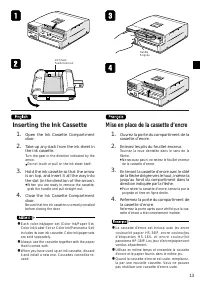
13 Inserting the Ink Cassette 1. Open the Ink Cassette Compartmentdoor. 2. Take up any slack from the ink sheet inthe ink cassette. Turn the gear in the direction indicated by thearrow. • Do not touch or pull on the ink sheet itself. 3. Hold the ink cassette so that the arrowis on top, and insert it...
Page 16 - Inserting a Memory Card; Insertion de la carte à mémoire; Pour retirer une carte.
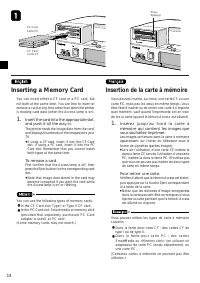
14 PC CardCarte PC PressAppuyer CF CardCarte CF Inserting a Memory Card You can insert either a CF card or a PC card, butnot both at the same time. You are free to insert orremove a card at any time other than when the printeris reading card data (when the Access lamp is on). 1. Insert the card into...
Page 17 - Print Modes; À propos des modes d’impression
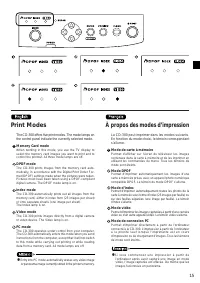
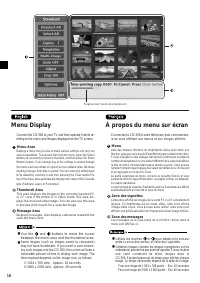
15 Print Modes The CD-300 offers five print modes. The mode lamps onthe control panel indicate the currently selected mode. Memory Card mode When working in this mode, you use the TV display toselect the memory card images you want to print and tocontrol the printout. All three mode lamps are off. D...
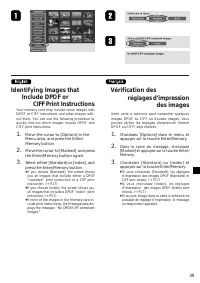
Page 19 - Printing in DPOF Mode; Press the Print button.; Impression automatique; Impression en mode DPOF; Appuyez sur la touche Print.
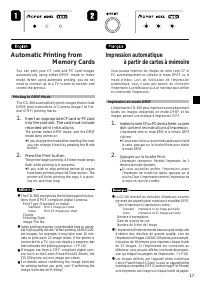
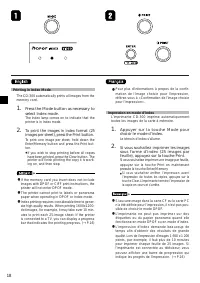
17 Automatic Printing from Memory Cards You can print your CF card and PC card imagesautomatically using either DPOF mode or Indexmode. When using automatic printing, you do notneed to connect up to a TV screen to monitor andcontrol the printout. Printing in DPOF Mode The CD-300 automatically prints...
Page 21 - Connexion avec le téléviseur :
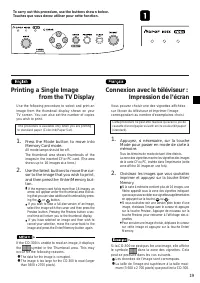
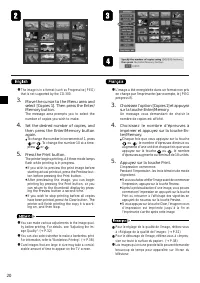
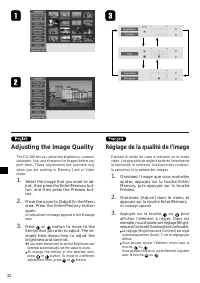
19 Printing a Single Image from the TV Display Use the following procedure to select and print animage from the thumbnail display shown on yourTV screen. You can also set the number of copiesyou wish to print. This procedure is available only when you are printingto standard paper (Color-Ink/Paper S...
Page 26 - Printing from Video Input; Impression des images vidéo
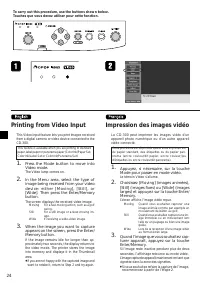
24 Printing from Video Input This Video Input feature lets you print images receivedfrom a digital camera or video device connected to theCD-300. This feature is available when you are printing to standardpaper, label paper or panorama paper (Color Ink/Paper Set,Color Ink/Label Set or Color Ink/Pano...
Page 28 - Impression d’images vidéo
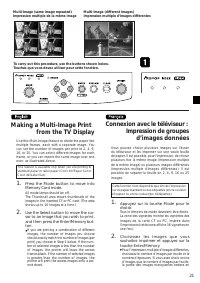
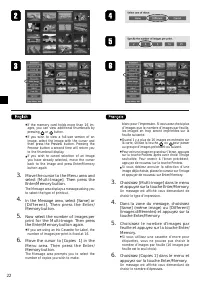
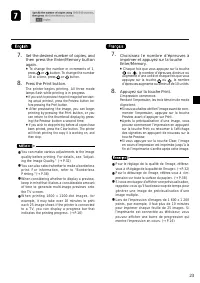
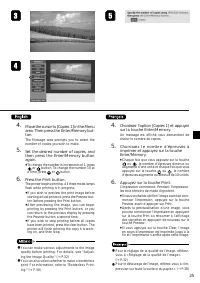
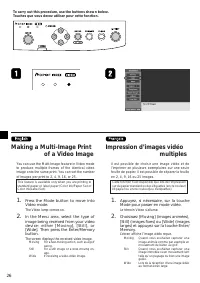
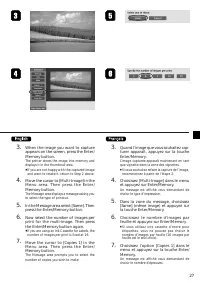
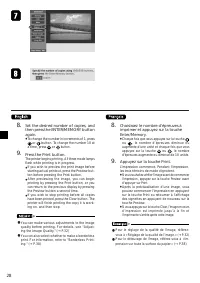
26 Making a Multi-Image Print of a Video Image You can use the Multi-Image feature in Video modeto produce multiple frames of the identical videoimage onto the same print. You can set the numberof images per print to 2, 4, 9, 16, or 25. This feature is available only when you are printing tostandard...
Page 31 - Printing a Panorama; Impression d’images au
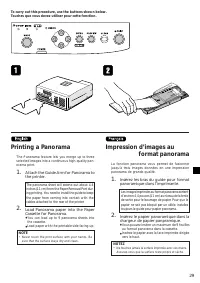
29 Printing a Panorama The Panorama feature lets you merge up to threeselected images into a continuous high-quality pan-orama print. 1. Attach the Guide Arm for Panorama tothe printer. The panorama sheet will extend out about 4.4inches (11 cm) from the Paper Removal Port dur-ing printing. You need ...
Page 32 - Press the Preview button.; Appuyez sur la touche Preview.
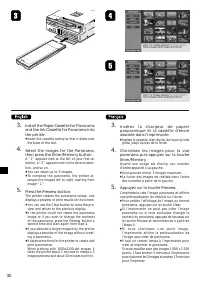
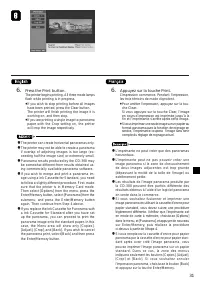
30 3. Install the Paper Cassette for Panoramaand the Ink Cassette for Panorama intothe printer. • Insert the cassette evenly so that it slides overthe base of the slot. 4. Select the images for the Panorama,then press the Enter/Memory button. A "1" appears next to the left of your first se-l...
Page 36 - Printing with Templates; Standard Templates (with printed messages); Impression avec cadre; Label Templates
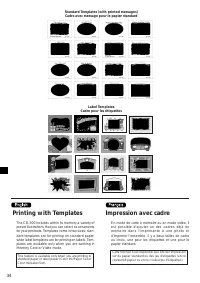
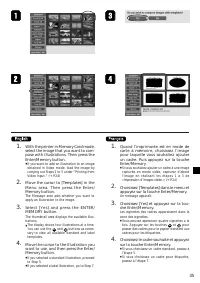
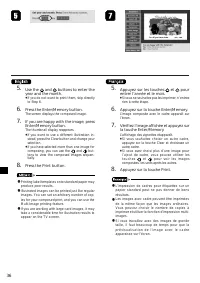
34 Printing with Templates The CD-300 includes within its memory a variety ofpreset illustrations that you can select as ornamentsfor your printouts. Templates come in two sizes: stan-dard templates are for printing on standard paper,while label templates are for printing on labels. Tem-plates are a...
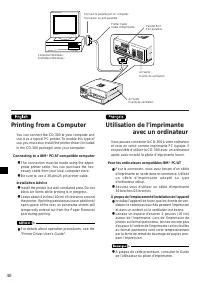
Page 42 - Printing from a Computer; Connecting to a IBM; Utilisation de l’imprimante; Pour les ordinateurs compatibles IBM
40 Printing from a Computer You can connect the CD-300 to your computer anduse it as a typical PC printer. To enable this type ofuse you must also install the printer driver (includedin the CD-300 package) onto your computer. Connecting to a IBM ® PC/AT compatible computer • The connection must be m...
Page 43 - Proper Usage and Handling; Précautions d’utilisation
41 Proper Usage and Handling Installation Advice • Do not install near strong magnets or near de-vices that produce strong electromagnetic fields. Magnetic fields can distort image quality. Keep theprinter a reasonable distance from electromagneticdevices such as TVs and game machines, and fromdevic...
Page 44 - Cleaning the Printer; À propos de la condensation
42 Cleaning the Printer • Never use benzene, paint thinner, or other vola-tile solvents to clean the printer. Volatile solvents may cause deformation or peel-ing. To clean the printer, wipe it with a soft drycloth. If stronger cleaning is required, wipe first witha cloth moistened with a weak neutra...
Page 45 - Proper Storage of Ink Cassettes and Paper; Maintaining the Quality of Your Prints; Conservation des cassettes d’encre et du papier
43 • Do not load too many sheets into the paper cas-sette. Maximum capacity is 18 sheets for standard andLabel paper, 9 sheets for Panorama paper. Over-loading the cassette may result in printer break-down. • Do not open the Ink Cassette Compartment Doorwhile printing is in progress. Printing will a...
Page 50 - Error Messages and What to Do; Messages d’erreur
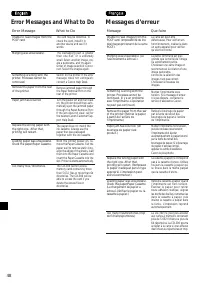
48 Error Messages and What to Do Error Message What to Do Unable to read images from thePC/CF card Merging was unsuccessful. Something is wrong with theprinter. Processes cannot becontinued. Remove the paper from the rearof the printer. Paper jam has occurred. Replace the wrong paper withthe right o...